 FlikaMove
How to add music and voice to an animation
A small sound can make a drawing feel more physical. In this guide, you’ll line up a tap with a ball hitting the floor, trim away unwanted sound, and export a movie that keeps the audio.
1. Choose the picture that needs the sound
Finish a rough version of your animation before adding sound. Step through it and find the exact picture where the action happens. In our bounce, the ball touches the floor on drawing 7.
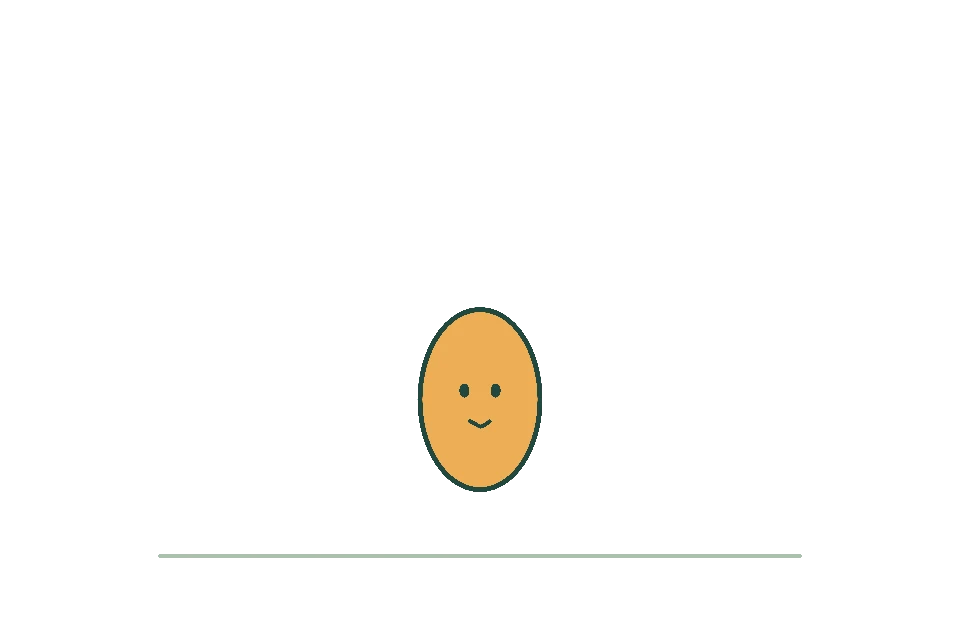
6 · Just before contact
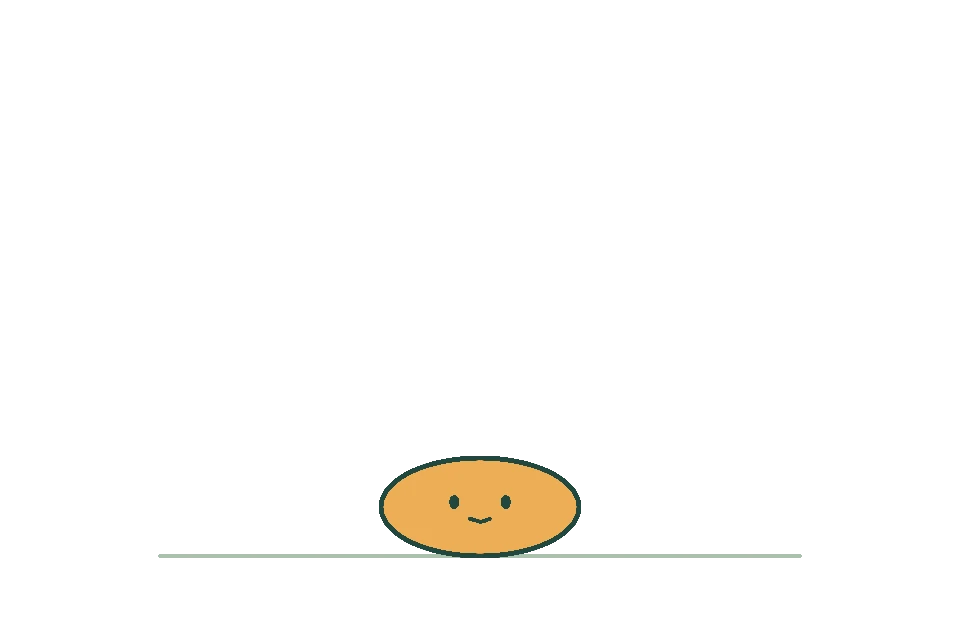
7 · Sound starts here
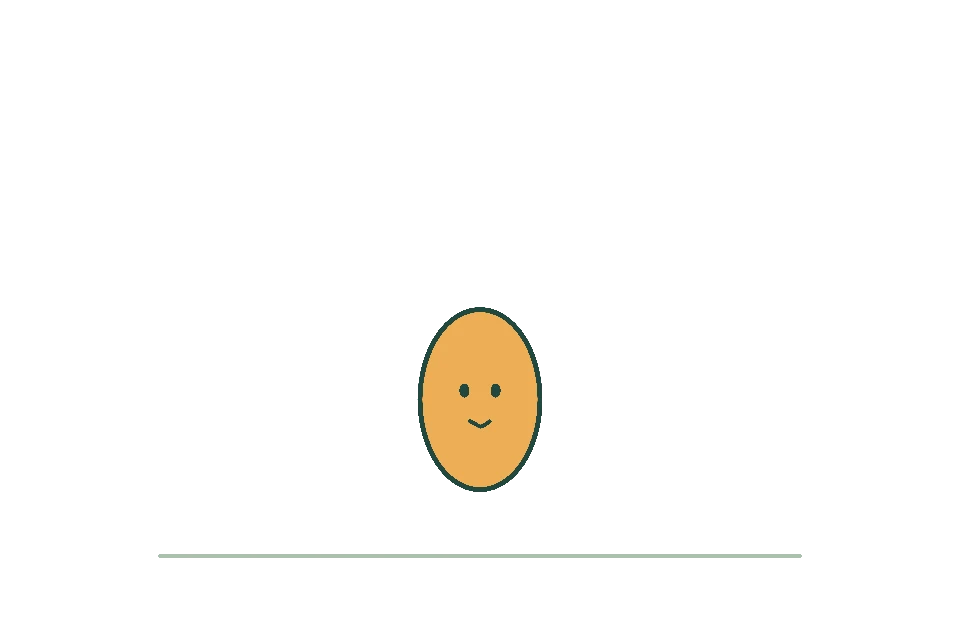
8 · Ball rises again
The project runs at 12 fps. Drawing 7 starts half a second into the loop, because six frames have already played. You can find the contact visually rather than doing the calculation each time.
2. Open Audio and bring in a sound
Tap Audio near the bottom of the editor. Tap Import and choose a sound file from Files. Use a short tap, click, or soft thump for this exercise.
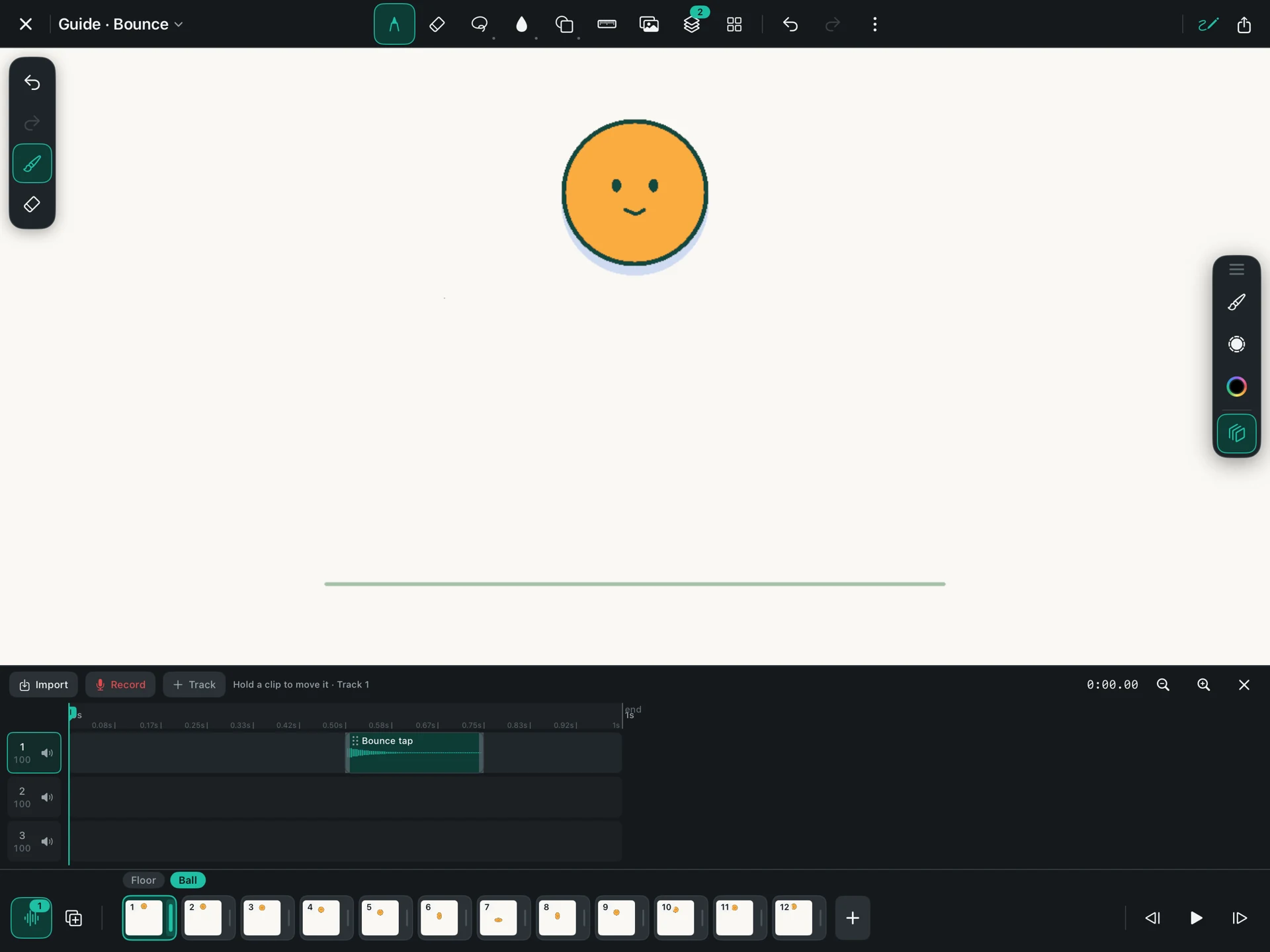
FlikaMove’s import picker accepts MP3, WAV, AIFF, and M4A audio types. The file still needs to contain audio your device can decode. For your own soundtrack, use sounds you recorded or have permission to use.
To use your voice instead, move to the place where you want recording to begin, tap Record, and allow microphone access if asked. Tap Stop when you finish. Use Discard if you want to try again.
3. Match the beginning of the sound to contact
Select the clip and move it along the track until the tap begins at the contact frame. The vertical position marker, called the playhead, shows the point you are checking in the animation.
A file may have silence before its tap. Aligning the file’s left edge will not help if the sound starts later inside it. Look for the first clear rise in the wave, and trim the empty beginning if needed.
4. Trim and set the volume
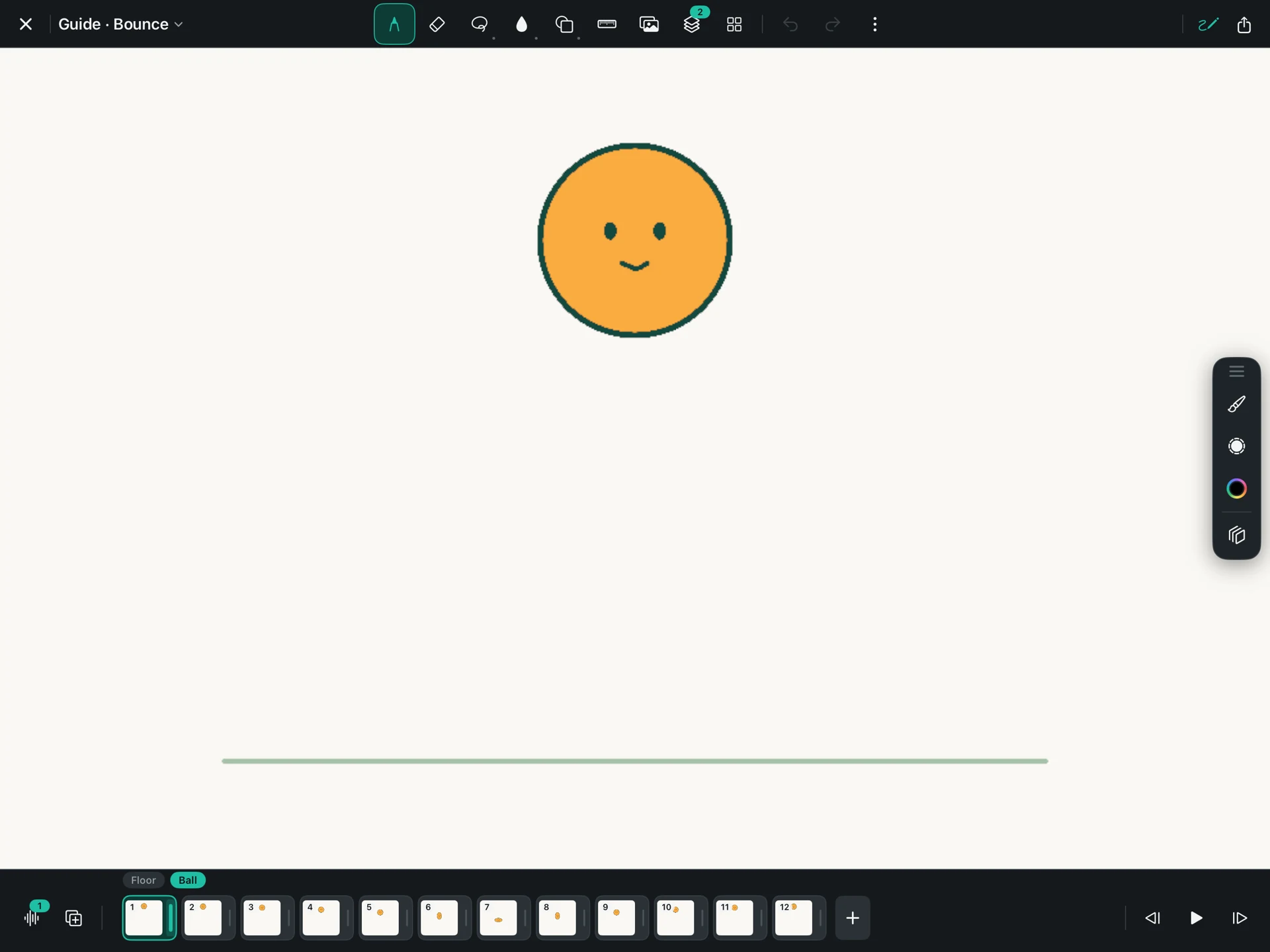
Drag the clip’s trim handles to keep the useful part of the sound. Keep a little of its natural ending; cutting a sound off too sharply can make it feel abrupt.
Listen at a comfortable device volume. Turn the clip down if it overwhelms the animation or another track. If you add music, lower it enough that a voice or important effect remains easy to hear.
For a one-second loop, avoid a long sound that runs well beyond the end unless that is intentional. Start with one short effect so you can hear whether the alignment is right.
5. Play it, then make one adjustment
Watch and listen at normal speed. If the tap seems early, move it a little later. If the ball lands silently and the tap follows, move it earlier.
Make a small change and play again. Zooming in on the timeline helps place a clip, but listening to the whole animation tells you whether it feels right.
For dialogue, listen for the main sounds and draw mouth changes around them. Importing a voice recording does not automatically draw or animate a mouth.
6. Export a movie with sound
Tap Export and choose MP4. GIF does not carry audio. Name the movie, choose a size, export, and play the saved file with sound on.
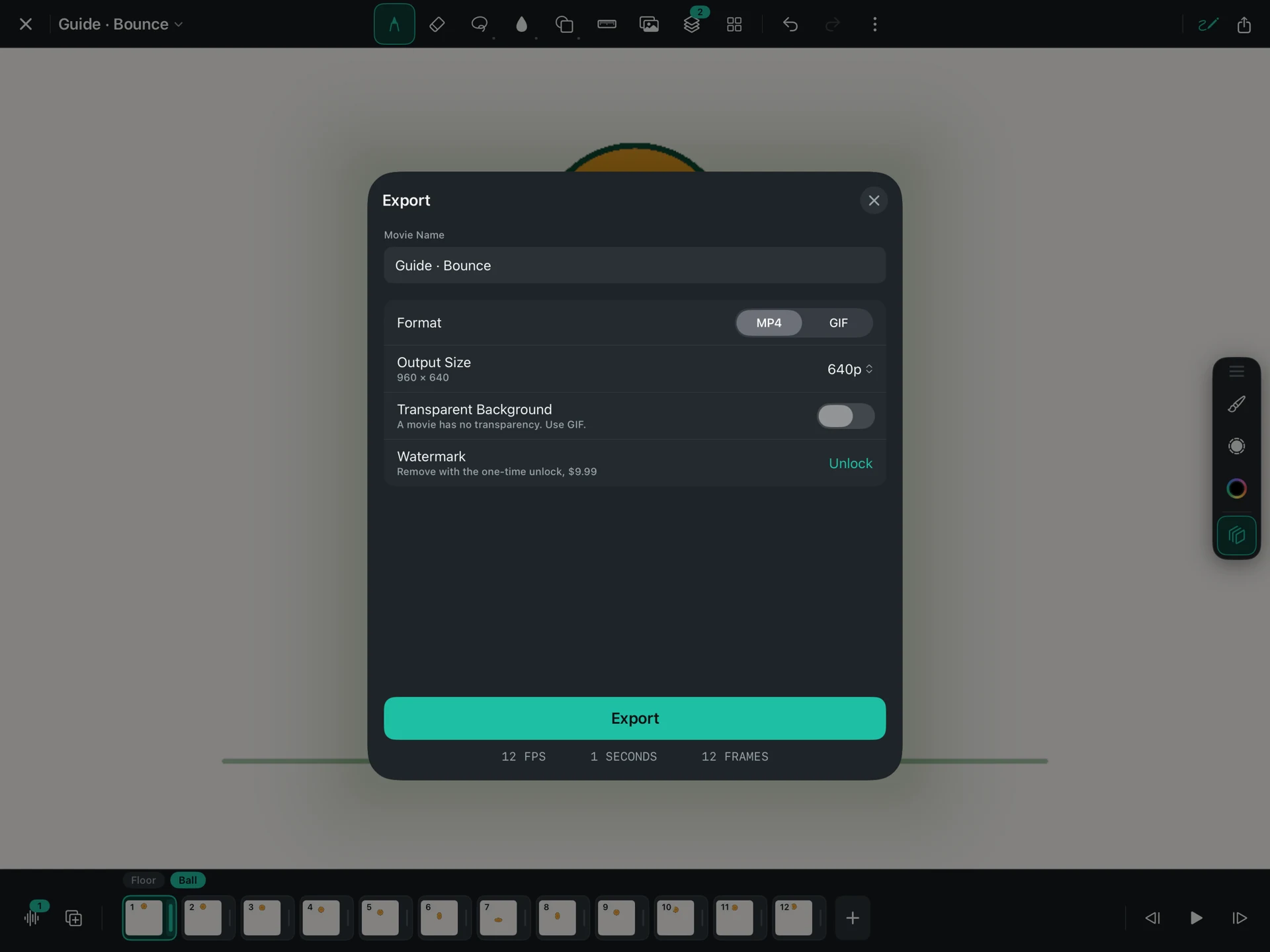
If the movie is silent, first check your player’s mute setting and device volume. Then return to the project, listen to the clip, and confirm you exported MP4.
Download the bounce practice project. In Files, unzip it and copy the complete .flikamove project into On My iPad → FlikaMove → Animations. Reopen FlikaMove and select the project from your library. Keep the downloaded copy as a backup.
The practice project includes a short tap aligned with the landing, so you can move it earlier and later to hear the difference.