 FlikaMove
What is frame-by-frame animation?
Frame-by-frame animation is a series of drawings played in order. You change a little between drawings, then choose how long each one stays on screen. This guide uses a blink to show how a few drawings can make a complete action.
1. See the change before learning the terms
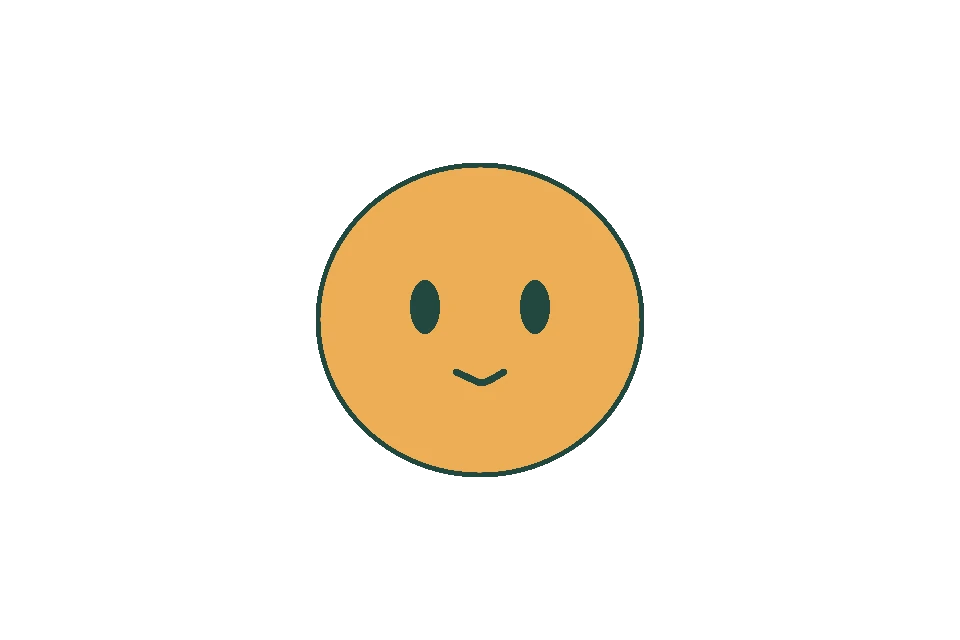
Open · 7 frames
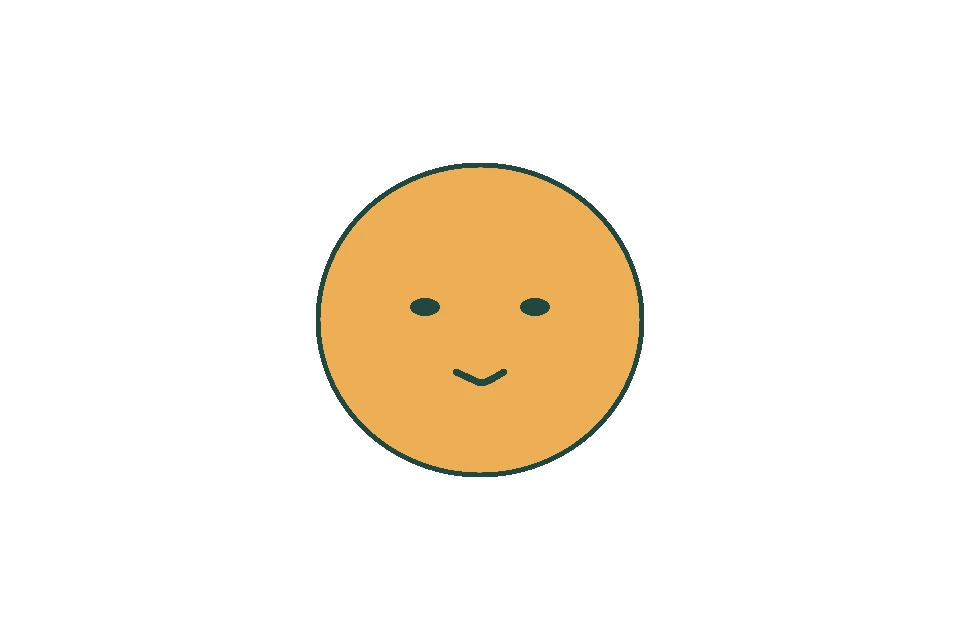
Half closed · 1 frame
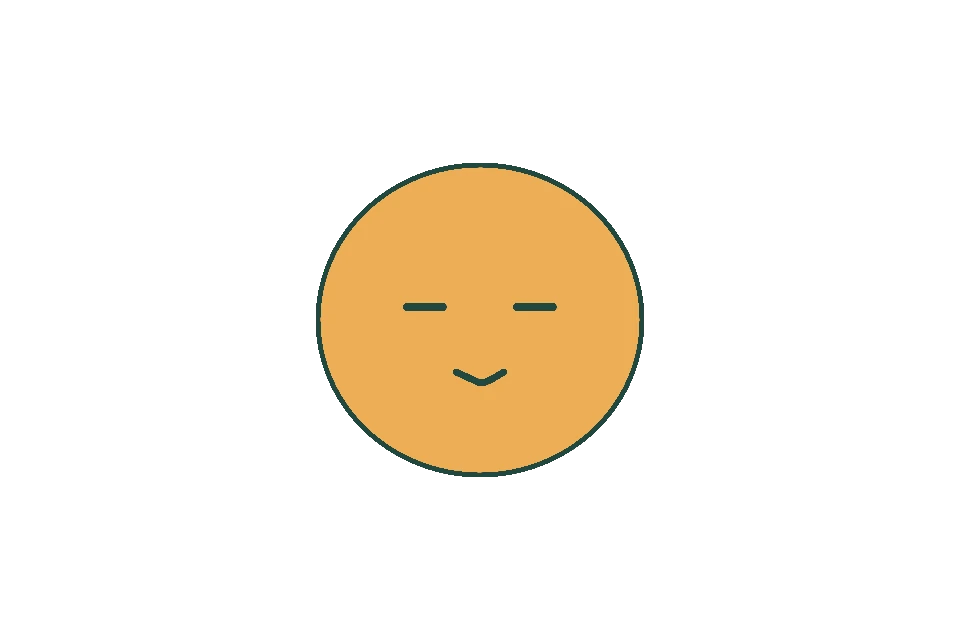
Closed · 1 frame
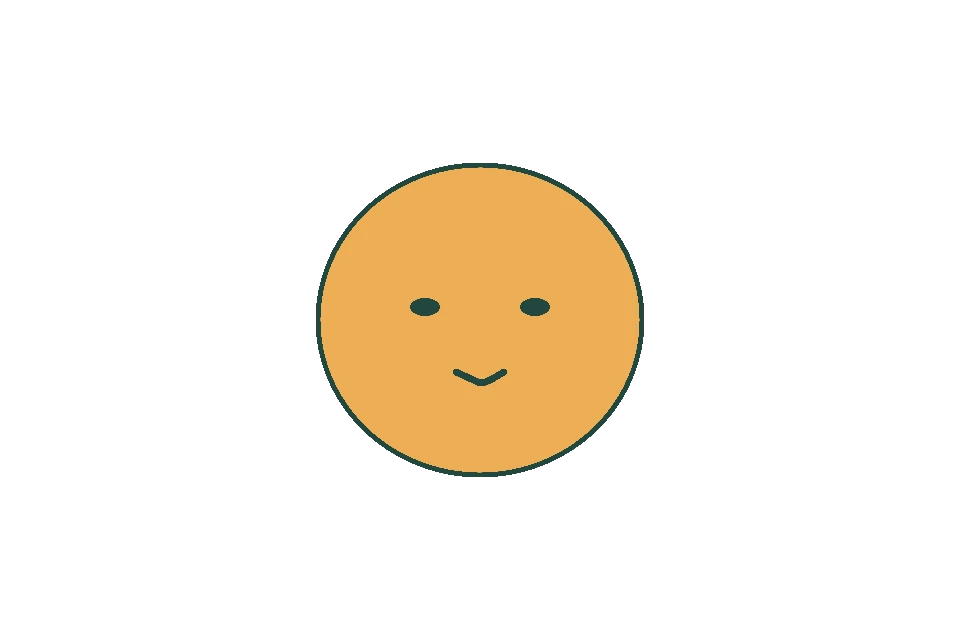
Half open · 1 frame
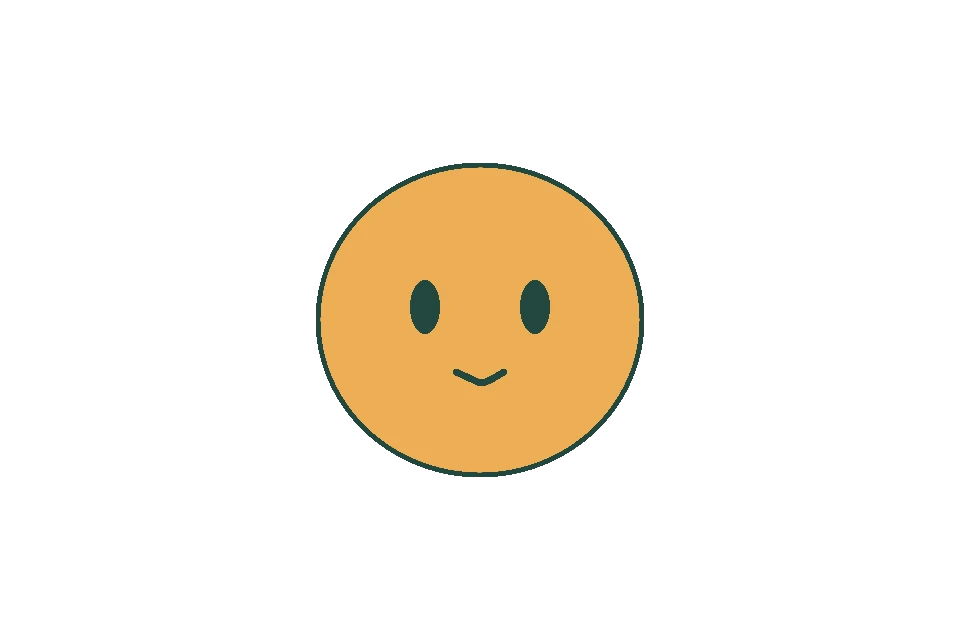
Open · 2 frames
Read the pictures from left to right. The eyes go from open to half closed to closed, then return. The head never changes position. You can try the same exercise with a dot turning into a line, or a flower opening.
The important question is simple: what changes between this picture and the next? Make that change clear before worrying about polish.
2. Understand drawings and playback frames
A drawing is a picture you make. A playback frame is one tick of screen time. One drawing can stay visible for several ticks. That is called a hold.
At 12 fps, twelve playback frames take one second. Our blink uses five drawings, but their holds add up to twelve frames. You get a one-second animation without making twelve different pictures.
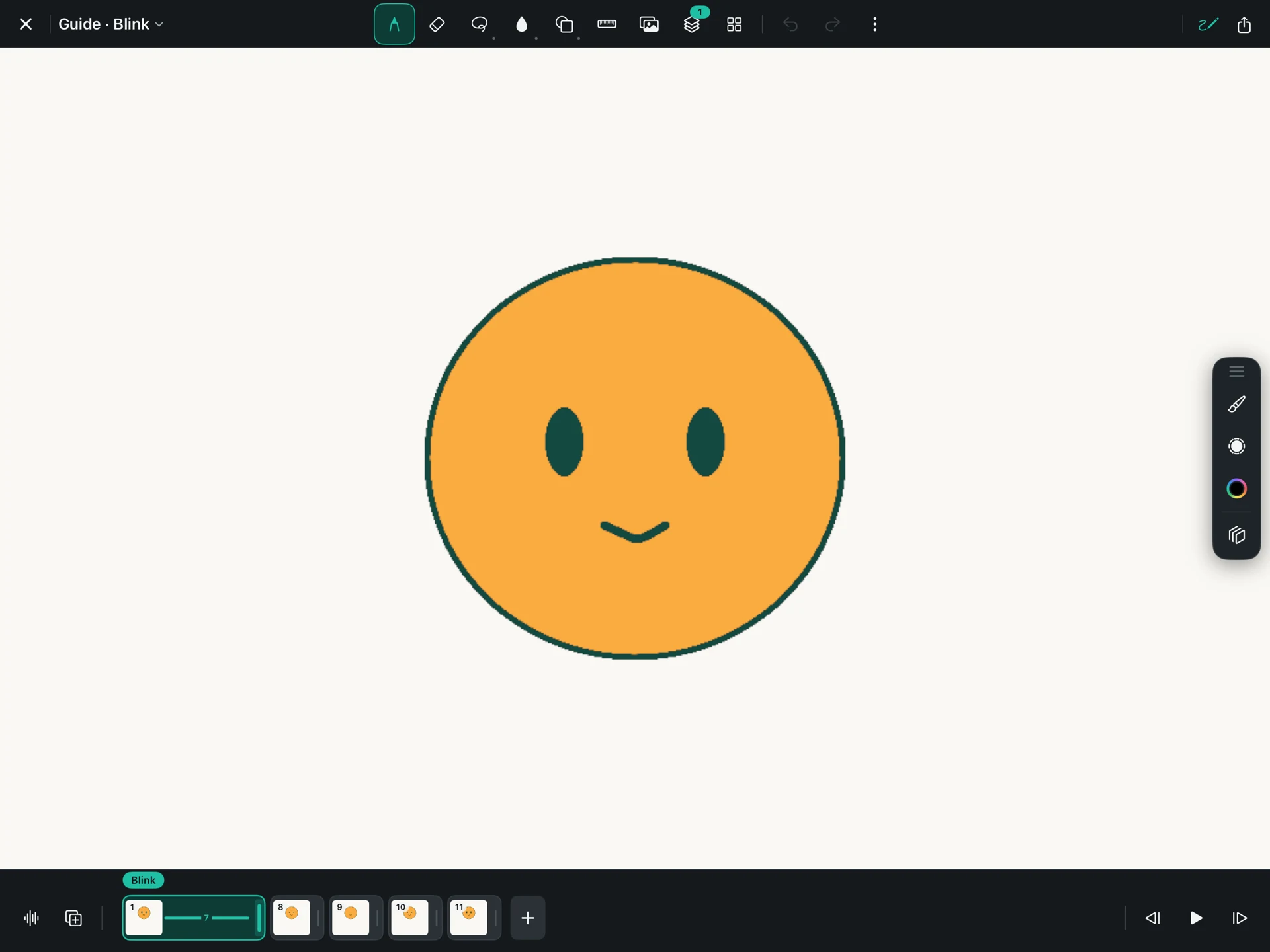
| Drawing | Eyes | Hold |
|---|---|---|
| 1 | Open | 7 frames |
| 2 | Half closed | 1 frame |
| 3 | Closed | 1 frame |
| 4 | Half open | 1 frame |
| 5 | Open | 2 frames |
3. Make the first drawing in FlikaMove
Create a project at 12 fps and draw the face. Use a large, simple head, two eyes, and a mouth. Keep the eyes far enough apart that their change is easy to see on a phone.
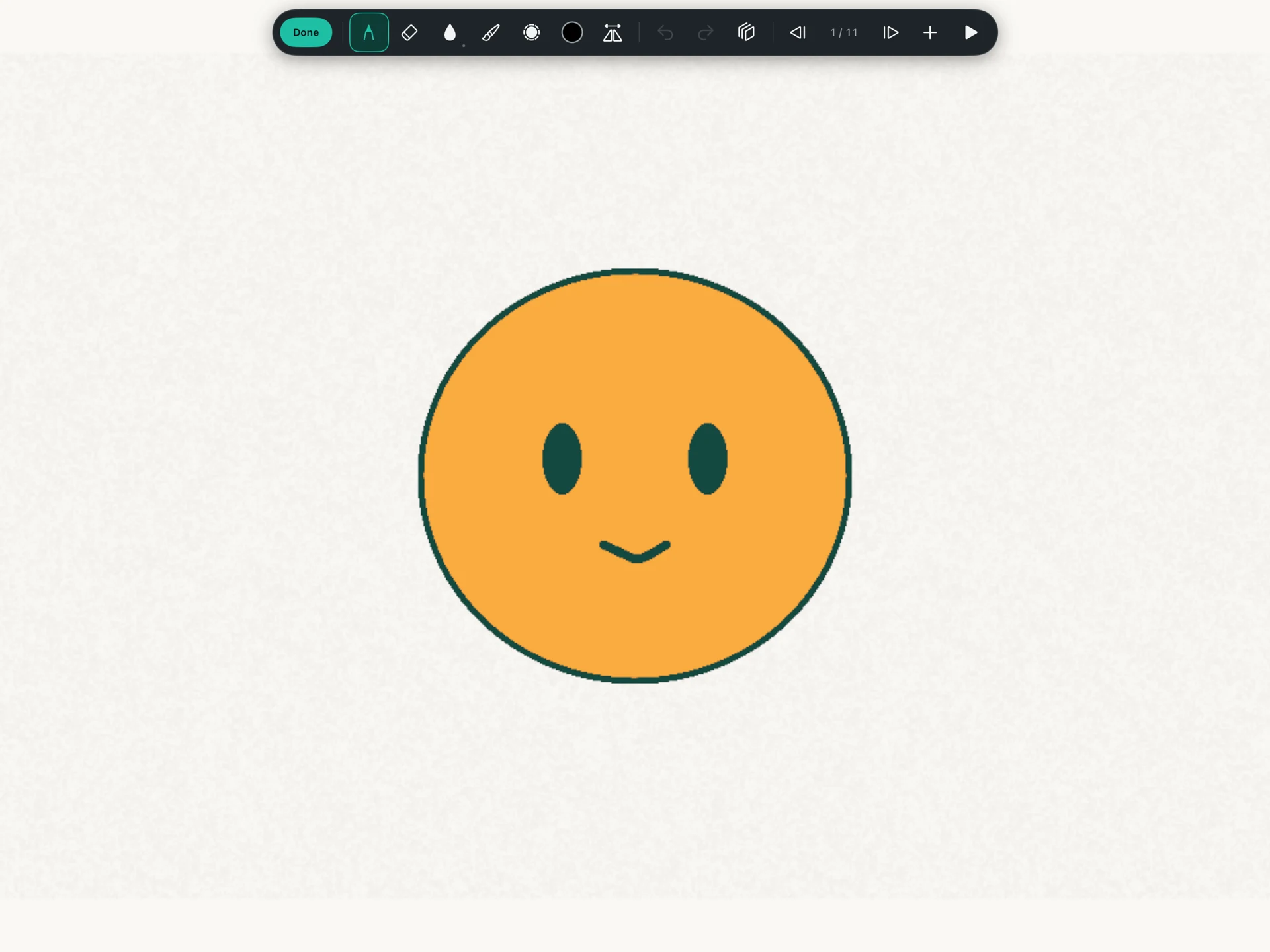
Leave Draw Mode to return to the timeline. Duplicate your drawing, erase the eyes on the copy, and draw the half-closed shape. Duplicate again for the fully closed eyes.
Finish with the half-open and open drawings. Select each drawing and drag the handle at the right of its timeline card to set the holds in the table. Right makes the hold longer; left makes it shorter. You can reuse the eye shapes from the closing motion for this simple opening motion.
4. Keep the parts that should stay still
If you redraw the whole head for every picture, its size may change accidentally. For this exercise, copying the head and changing only the eyes keeps the movement clear.
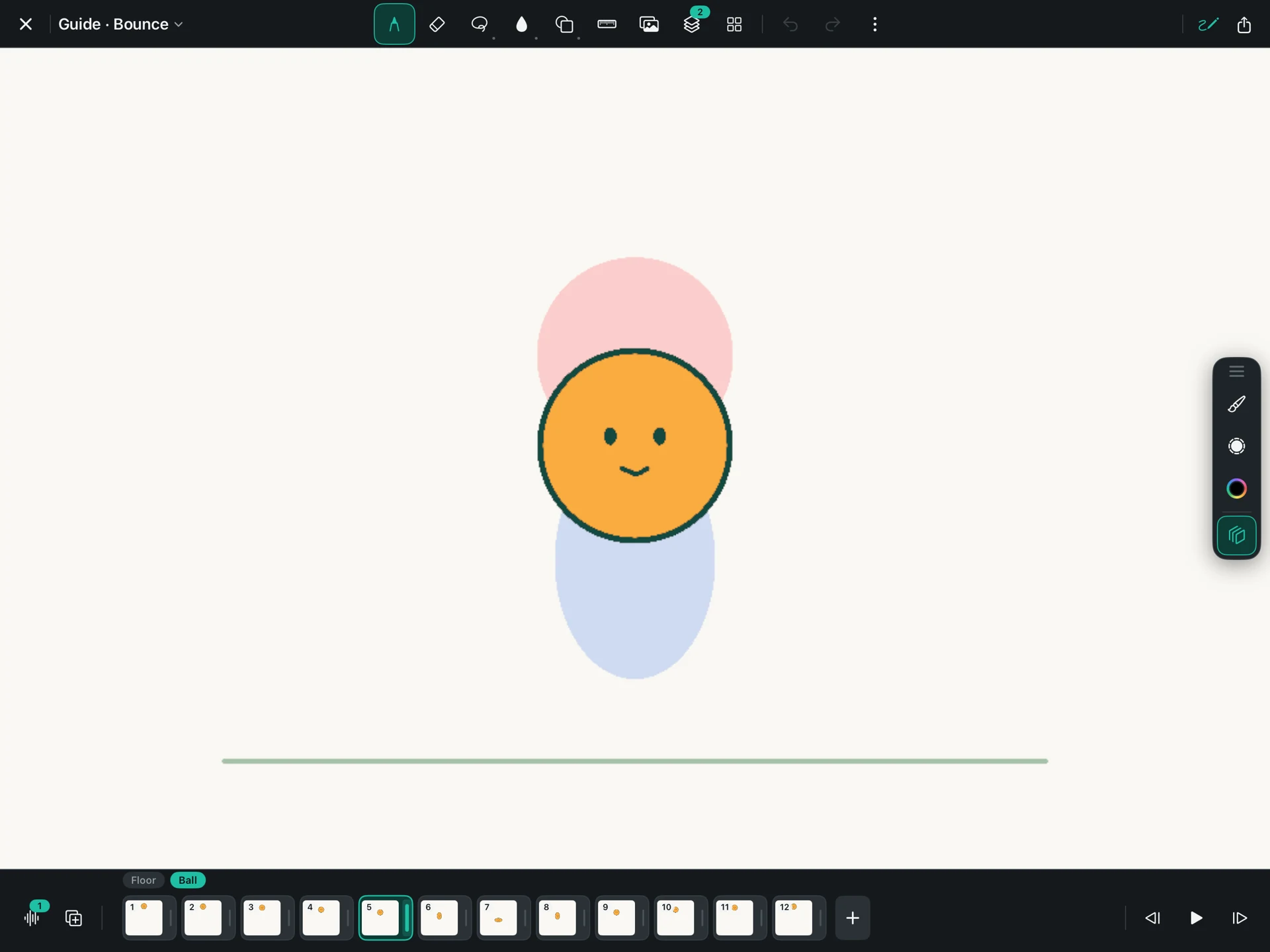
Onion Skin helps when you do want to redraw. It shows nearby drawings faintly behind your current one. Use the outline of the head as a reference, then turn it off to see the clean picture.
5. Change the timing without redrawing
Play the blink once with the table’s holds. Then make the first open-eyed drawing last longer. The eyes make the same movement, but the character waits longer before blinking.
Next, make the closed drawing last longer. The character may look sleepy. You have changed the feeling by changing the holds, even though the pictures are identical.
Raising the frame rate plays the same frames faster. It does not invent missing drawings. If you want a smoother change, first look at which transition needs another drawing.
6. Know when to draw and when to pose
Drawing each change works well for blinks, splashes, changing expressions, and shapes that bend in unusual ways. You have direct control over the outline of every picture.
A rig is useful when you want to bend the same drawing at joints, such as an elbow. FlikaMove can also create intermediate poses between compatible Smart Symbol poses. That is a separate workflow, explained in the rigging guide.
Download the blink practice project. In Files, unzip it and copy the complete .flikamove project into On My iPad → FlikaMove → Animations. Reopen FlikaMove and select the project from your library. Keep the downloaded copy as a backup.
Try one small variation
Make a double blink: add a second close-and-open movement after a short pause. Watch it at normal speed. If you can read both blinks clearly and the head stays still, the exercise is working.