 FlikaMove
Onion skin animation: keep drawings consistent
Onion skin shows faint copies of nearby drawings while you work. It helps you see where a shape was and where it is going. This guide shows how to turn it on, read the colors, and use it to improve a blink or a bounce.
1. Know which drawing you are editing
In the example below, the solid orange ball is the current drawing. The faint red ball comes before it. The faint blue ball comes after it. Only the current drawing is being edited.
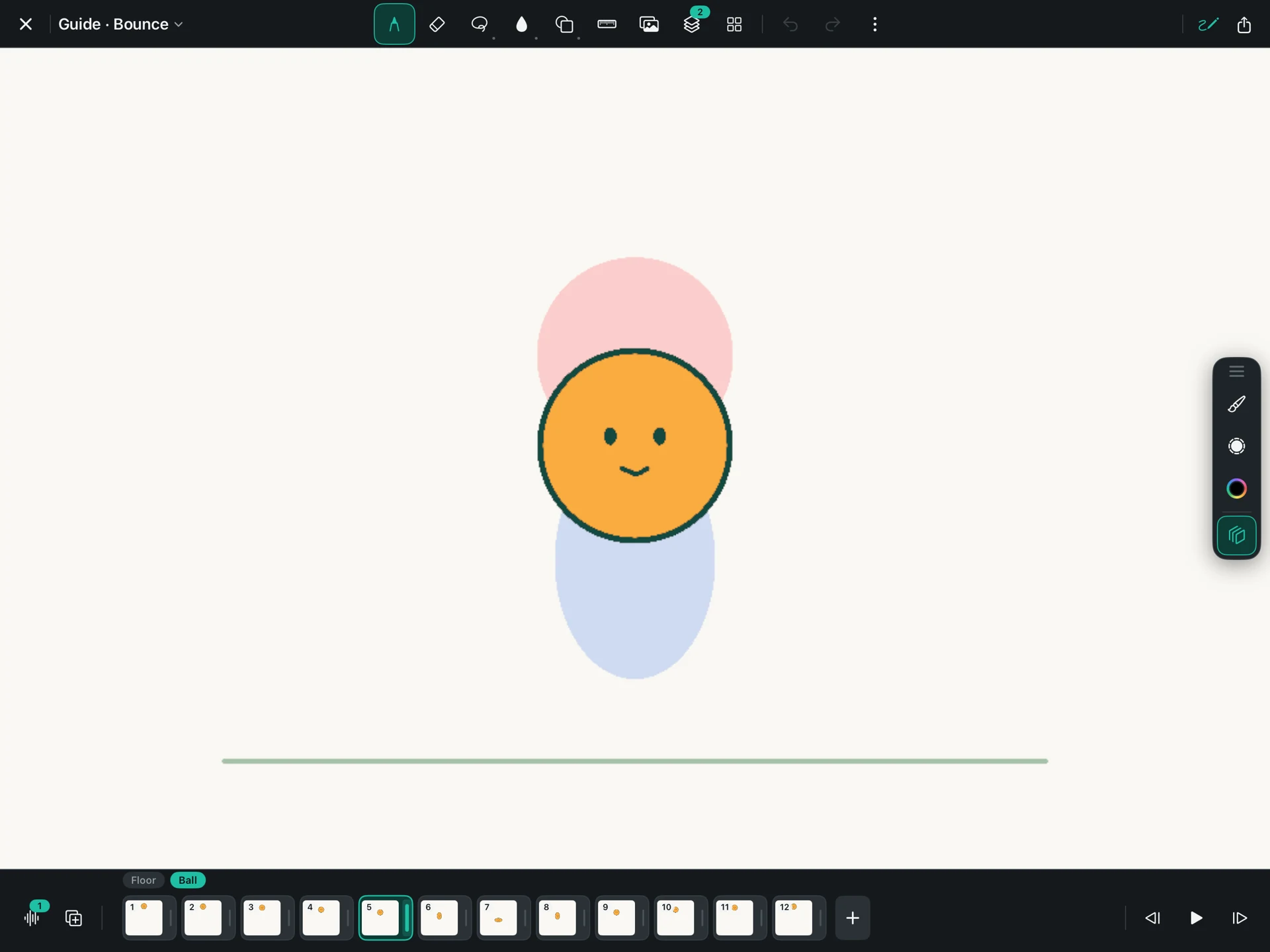
These guides are especially helpful when something should stay still, such as a character’s head, or move along a clear path, such as a bouncing ball.
2. Turn it on at a useful point
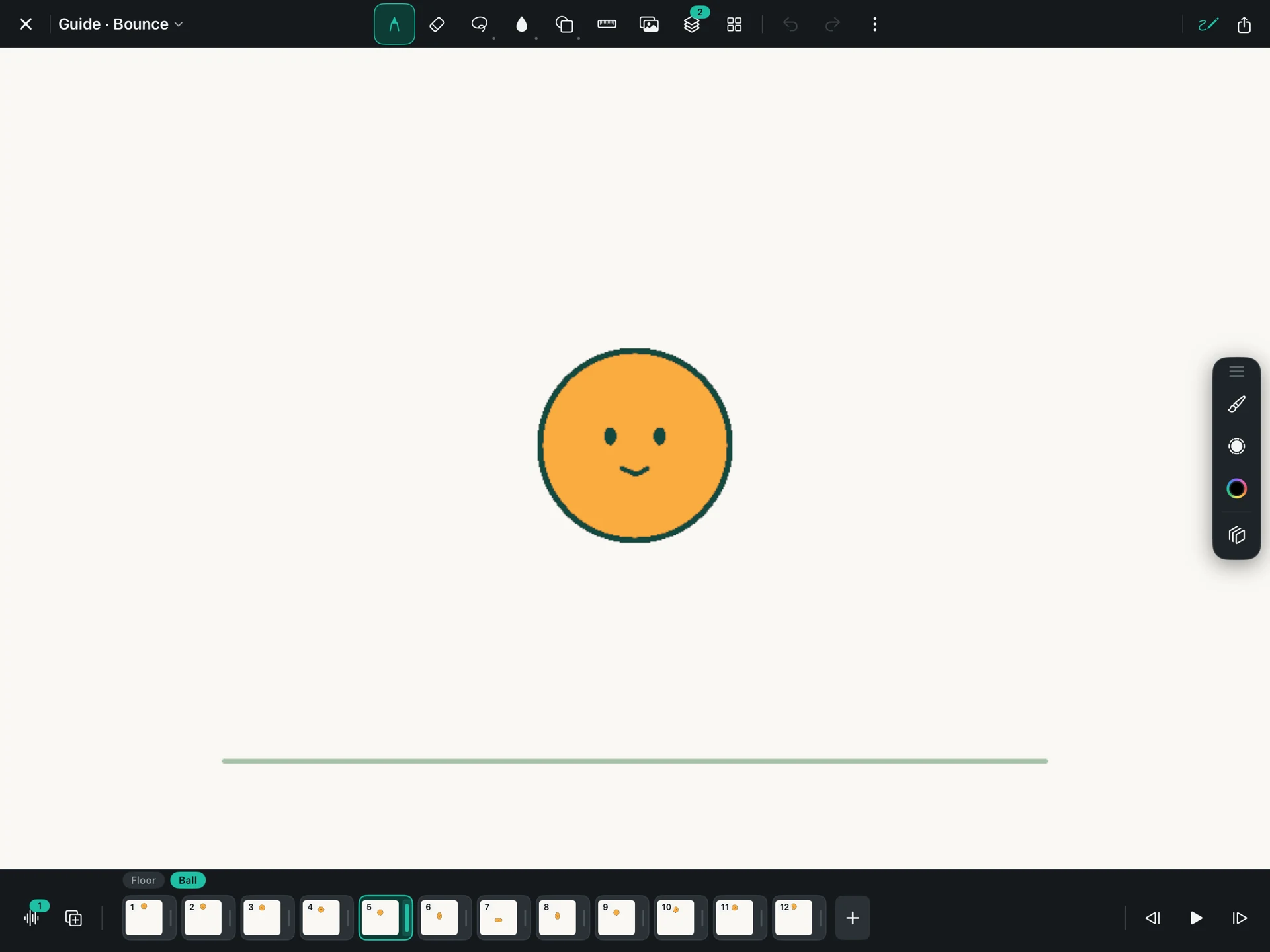
Open the bounce project, select the Ball layer, and tap drawing 5 in the timeline. Choosing a drawing in the middle gives you a picture both before and after it.
Tap Onion Skin in the right-hand controls. With the default settings, one earlier drawing appears in red and one later drawing in blue. Tap the same control again to hide them.
If you select the first drawing, there may be no earlier drawing to show. If you select a layer with only one held picture, there are no different neighboring drawings on that layer.
3. Keep a blink from wobbling

Open eyes
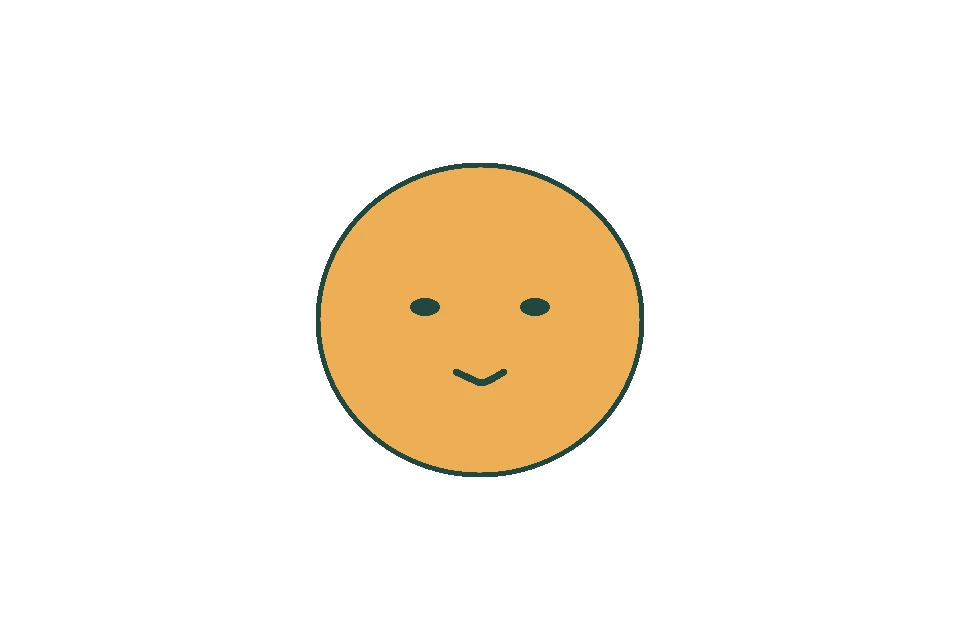
Half closed eyes
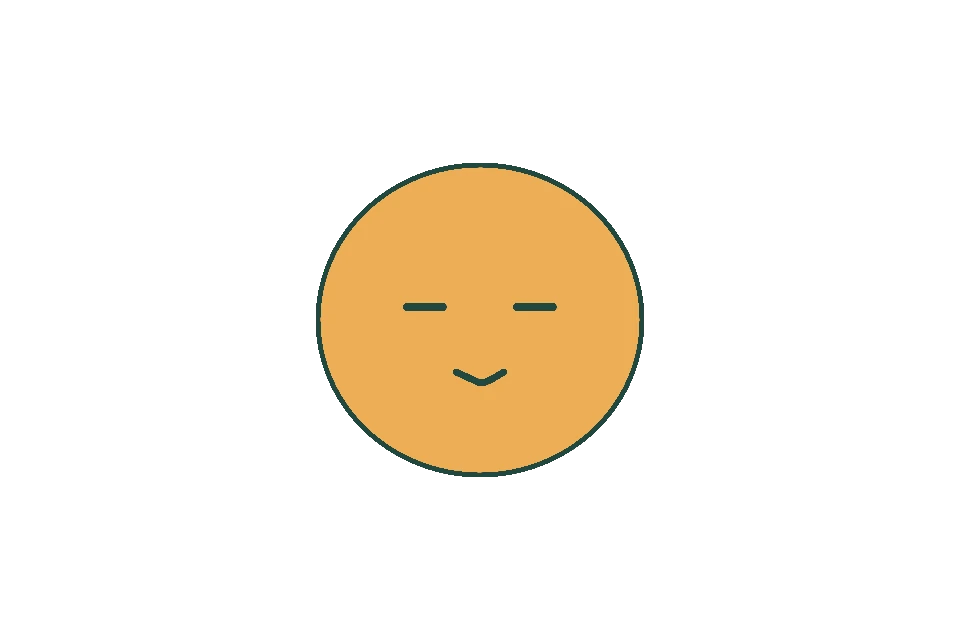
Closed eyes
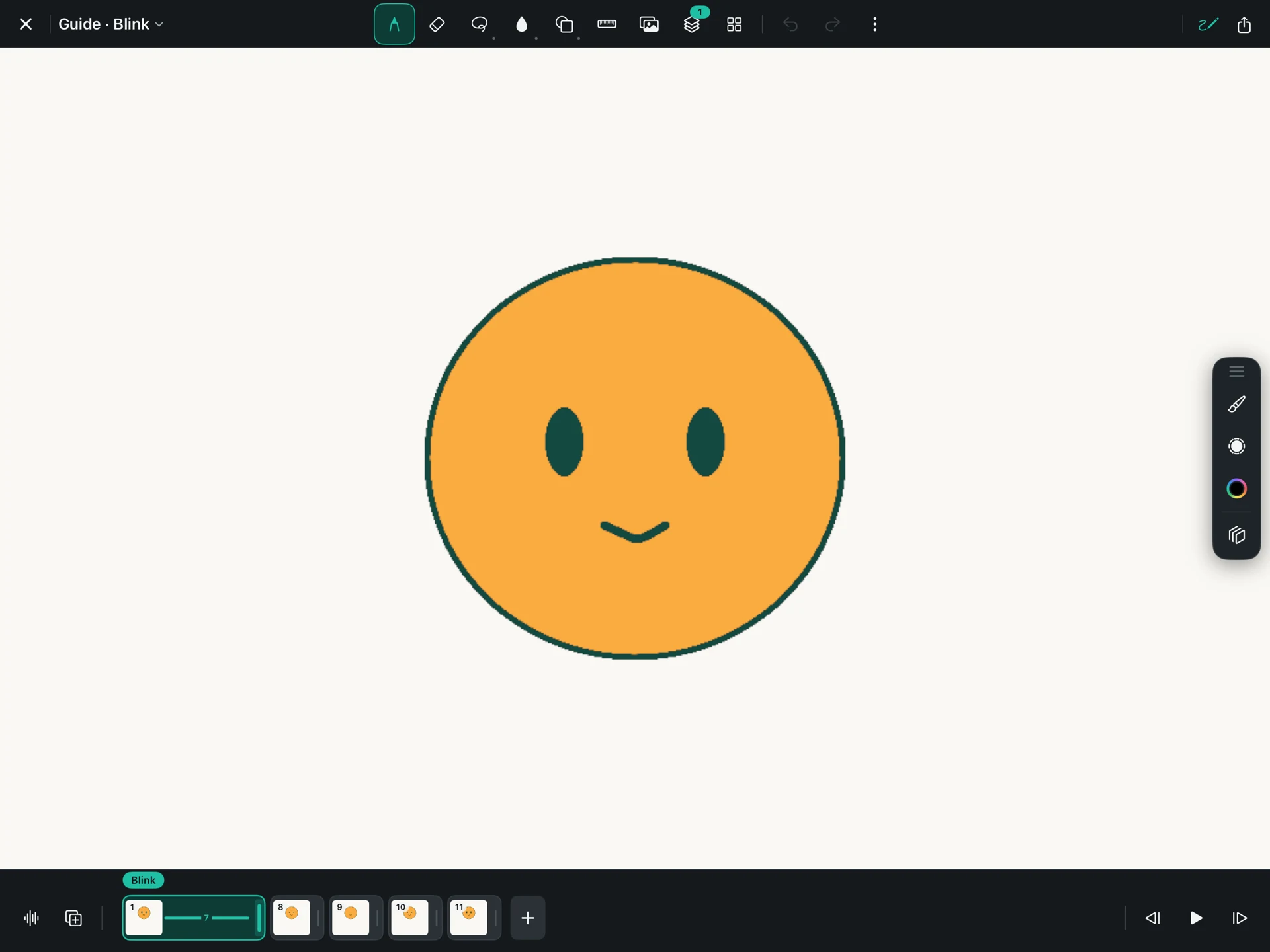
Select the half-closed drawing. Compare the head’s outer edge with the faint open-eyed drawing. If the head has shifted, move it back before refining the eyelids.
Choose two steady reference points: the center of the head and the middle of the smile. Keeping those points aligned makes it easier to change the eyes without moving the whole face.
4. Check the speed of a bouncing ball
Onion skin also reveals the gap between drawings. Near the top of a bounce, the outlines should sit close together. As the ball falls, the gaps should grow.
If the ball moves the same distance every time, it will look as if it is traveling at one speed. To make the fall accelerate, keep the early positions close and spread the later positions farther apart.
Do not copy the faint outline exactly when the ball is supposed to move. Use it to judge the distance. The bounce guide includes the full sequence of positions.
5. Separate a guide from a mistake
A red or blue outline outside the ball does not mean you accidentally drew another ball. It is a reference from another drawing. Hide Onion Skin before trying to erase a mark you do not recognize.
Compare the clean canvas below with the first screenshot. The current ball stays in exactly the same place. Only the faint neighbors disappear.
Onion skin follows neighboring drawings, not every tick of a hold. If one drawing stays on screen for seven frames, it does not make seven different ghost images.
6. Turn the guides off and watch the result
Tap Onion Skin again to hide the faint drawings, then play the animation. Clean outlines can still move awkwardly, so always check the movement at its normal speed.
- Too many overlapping shapes? Switch Onion Skin off to inspect the current drawing on its own.
- Nothing appears? Check that the current layer has another drawing nearby.
- The shape slowly grows? Compare its width and height as well as its position.
- The loop jumps? Compare the last drawing with the first one.
Download the bounce practice project. In Files, unzip it and copy the complete .flikamove project into On My iPad → FlikaMove → Animations. Reopen FlikaMove and select the project from your library. Keep the downloaded copy as a backup.