 FlikaMove
How to make your first animation: a beginner’s guide
Your first animation can be a face that blinks. You only need three eye shapes: open, half closed, and closed. In this guide, you’ll draw them in FlikaMove, arrange them into a short loop, and save a video.
You’ll make: a one-second blink. You’ll use: Draw, Add frame, Duplicate Frame, Onion Skin, and Play. An Apple Pencil is helpful, but you can also draw with your finger when finger drawing is enabled.
1. Plan the blink before you draw
Look at the drawings below. The head and smile stay in one place. The eyes close quickly, then open again. That small change is enough to make a still drawing feel alive.

Open · 7 frames
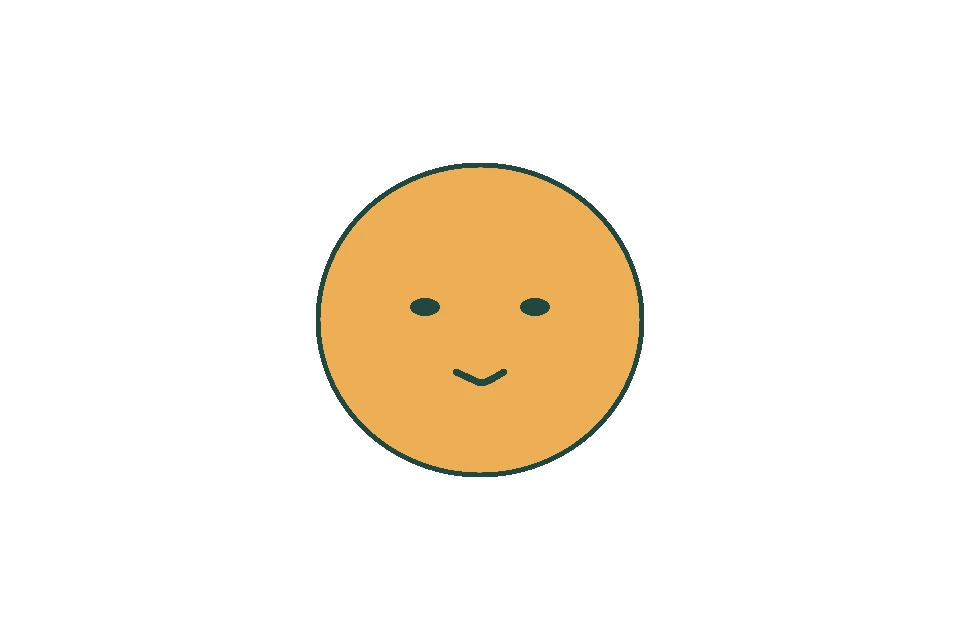
Half closed · 1 frame

Closed · 1 frame
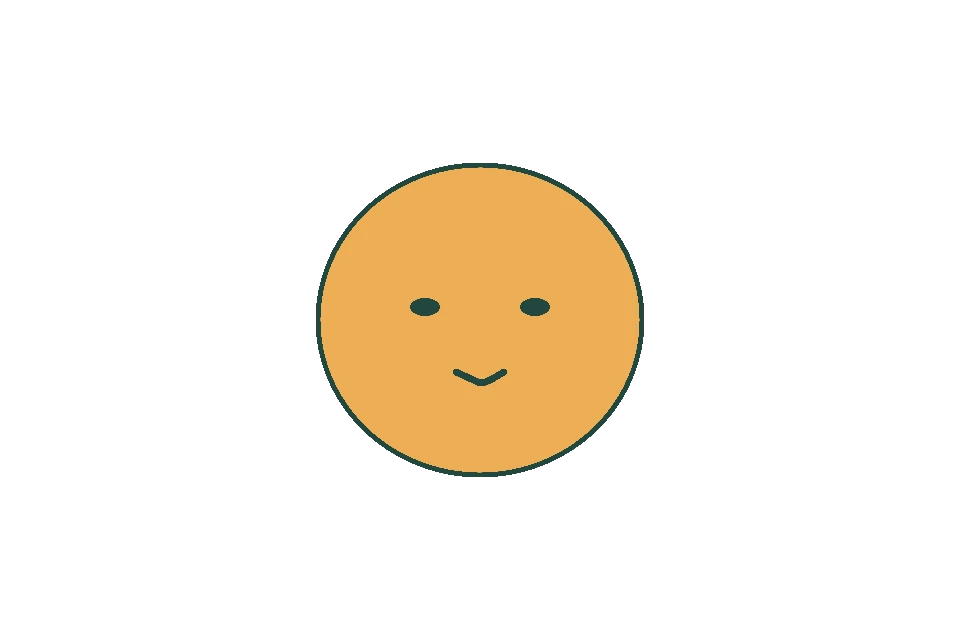
Half open · 1 frame

Open · 2 frames
The number under each drawing tells you how long it stays on screen. “7 frames” means the same drawing stays visible for seven ticks of the animation. You do not have to draw it seven times.
2. Start a small project
Create a project in FlikaMove and choose a comfortable canvas size. Our example is 960 × 640 pixels. Set the frame rate to 12 fps: that means the app plays 12 frames in one second.
Give the project a name you’ll recognize, such as “My first blink.” Keep the first attempt small. A simple face is easier to finish and check than a whole character with moving hair and clothes.
3. Draw the open eyes
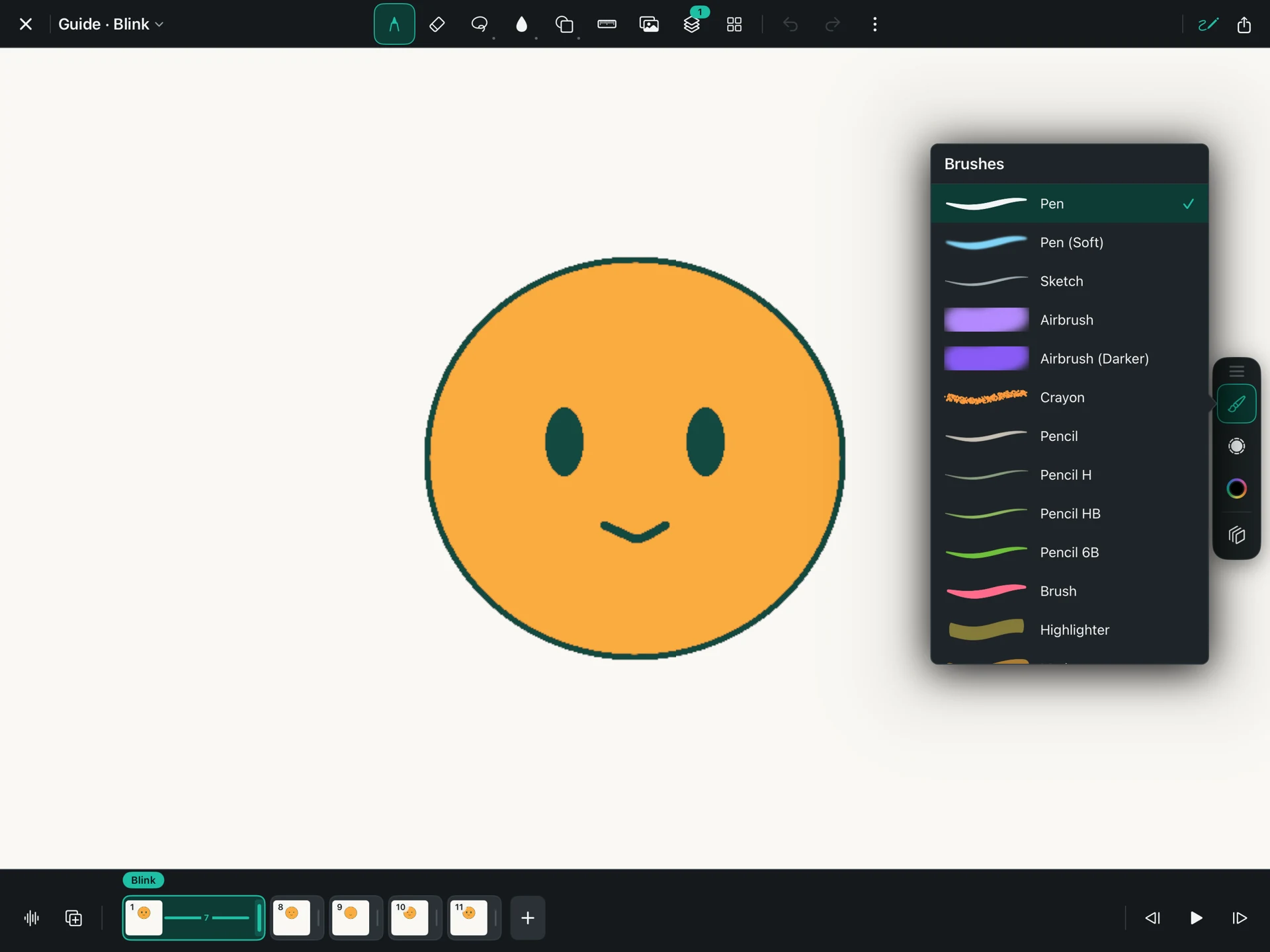
Choose Draw, pick a brush and a color, and draw a large round head. Add two open eyes and a smile. Keep the outlines simple enough that you can recognize them when the picture is small.
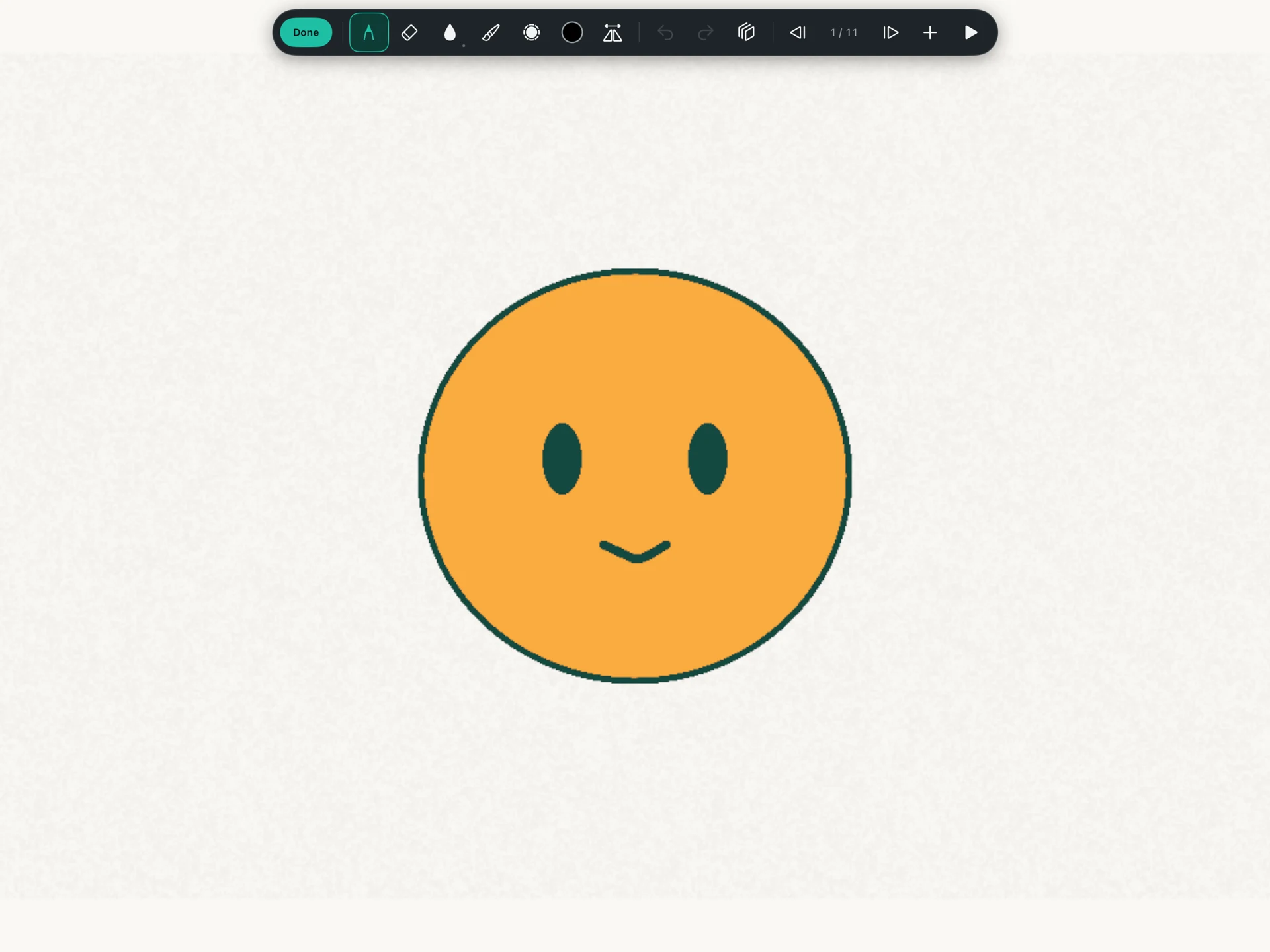
You can open the brush controls to change the tool or its size. Use the same brush size for the whole face. You can experiment with textured brushes after the movement works.
4. Make the eyes close and open
Leave Draw Mode. Tap Duplicate Frame to copy your face. On the copy, erase just the eyes and draw them half closed. Duplicate that drawing again and replace the eyes with two short lines.
Now add the return: a half-open drawing, followed by the open eyes. You should have five drawings in this order: open, half closed, closed, half open, open.
Turn on Onion Skin if the head or eyes start drifting. It shows a faint neighboring drawing behind the one you are working on. Match the center of the head, then change the eyelids.
5. Give the face time to look at you
Select a drawing and drag the handle on the right side of its timeline card to change how long it stays on screen. Drag right for a longer hold and left for a shorter one. Use the counts in the picture above: 7, 1, 1, 1, and 2. Together, those holds make 12 playback frames—one second at 12 fps.
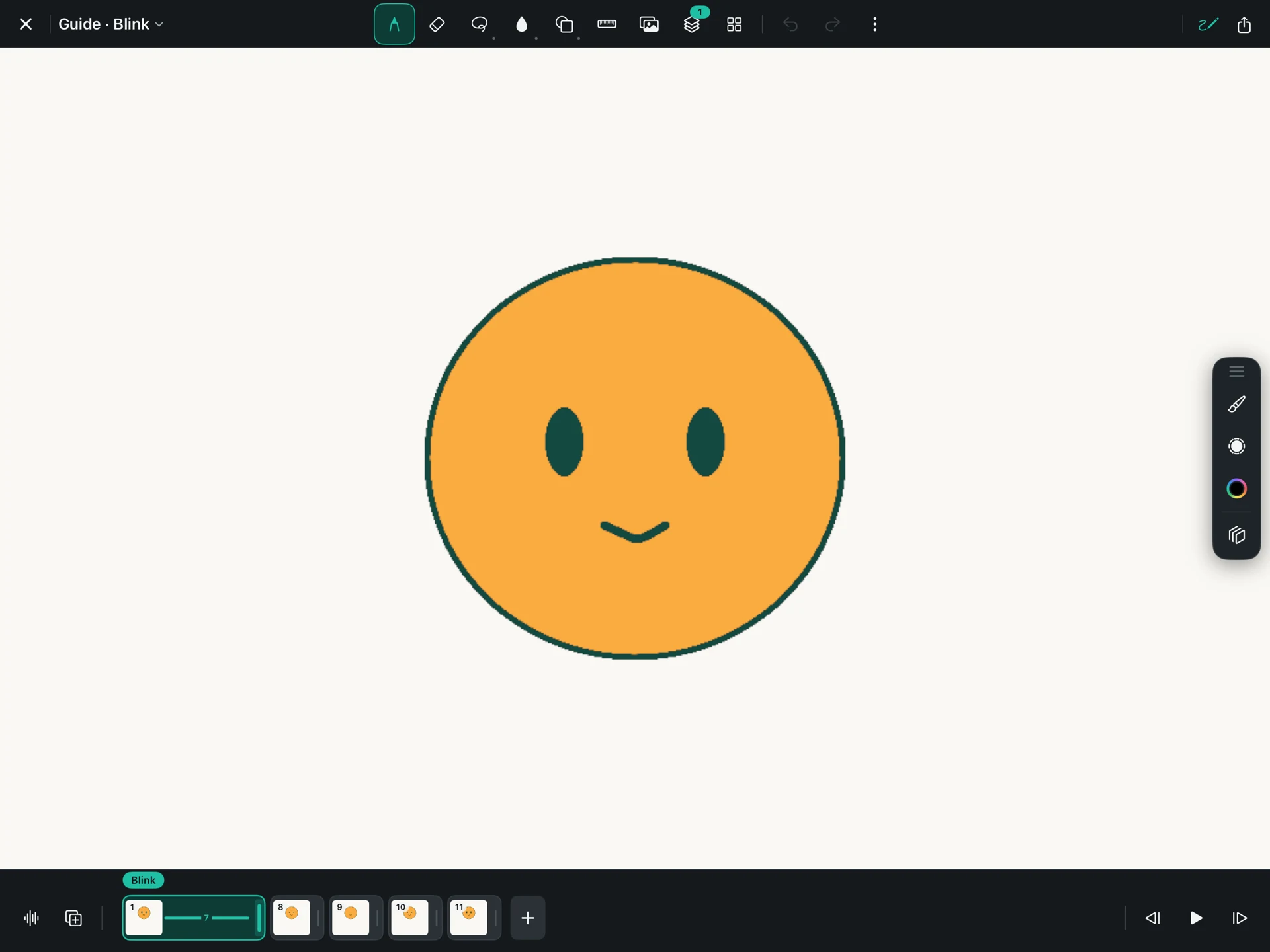
Tap Play. Watch several loops. If the eyes seem closed for too long, check that the closed drawing has a one-frame hold. If the head shakes, compare its outline between drawings.
6. Save a copy you can share
Tap Export, choose MP4, and give the movie a name. Export it, then open the saved movie and watch it from beginning to end. The export guide shows the settings.
Keep your FlikaMove project too. The movie is for watching; the project keeps the separate drawings so you can change them later.
Download the blink practice project. In Files, unzip it and copy the complete .flikamove project into On My iPad → FlikaMove → Animations. Reopen FlikaMove and select the project from your library. Keep the downloaded copy as a backup.
What to try next
Change one thing: make the eyes glance sideways before they blink, or add a second quick blink. Keep the head still until you are happy with the eyes. Then try the bouncing ball exercise to practice movement through space.