 FlikaMove
Export an animation as MP4 or GIF
Export makes a watchable copy of your animation. Choose MP4 when you want a movie with sound. Choose GIF for a short, silent loop. Keep the FlikaMove project too, so you can still change the drawings later.
1. Check the animation before exporting
Play it from start to finish. Look for blank drawings, an extra hold at the end, or a shape that jumps when the loop restarts. Listen to any audio at normal speed.
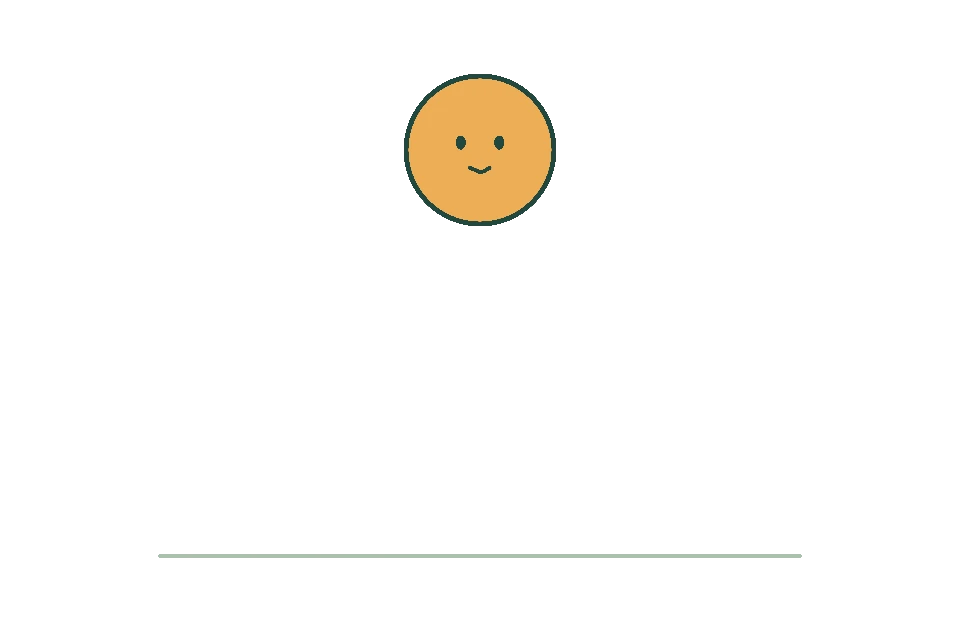
Check the start

Check the main action
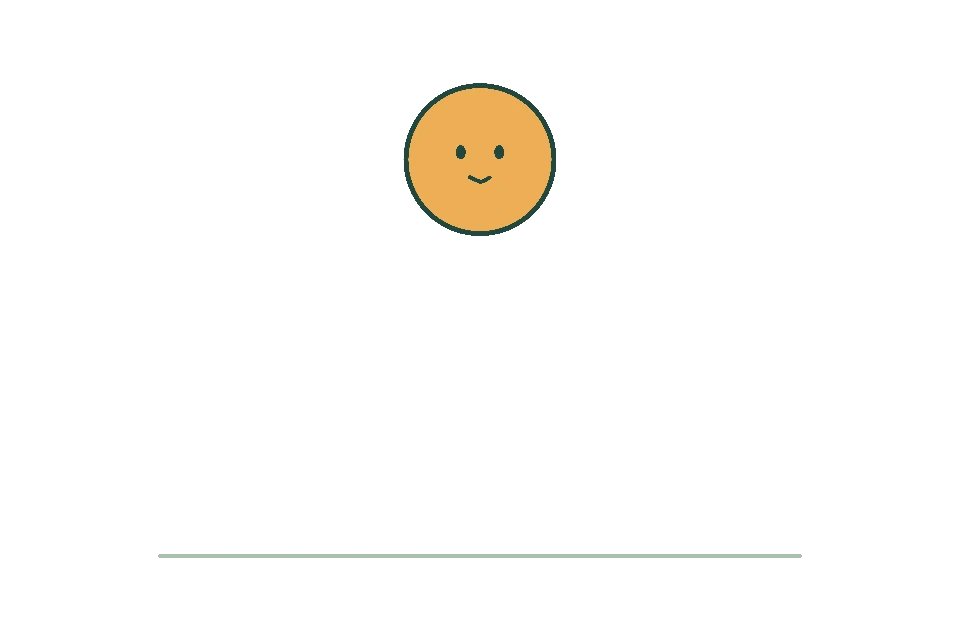
Check the return to the start
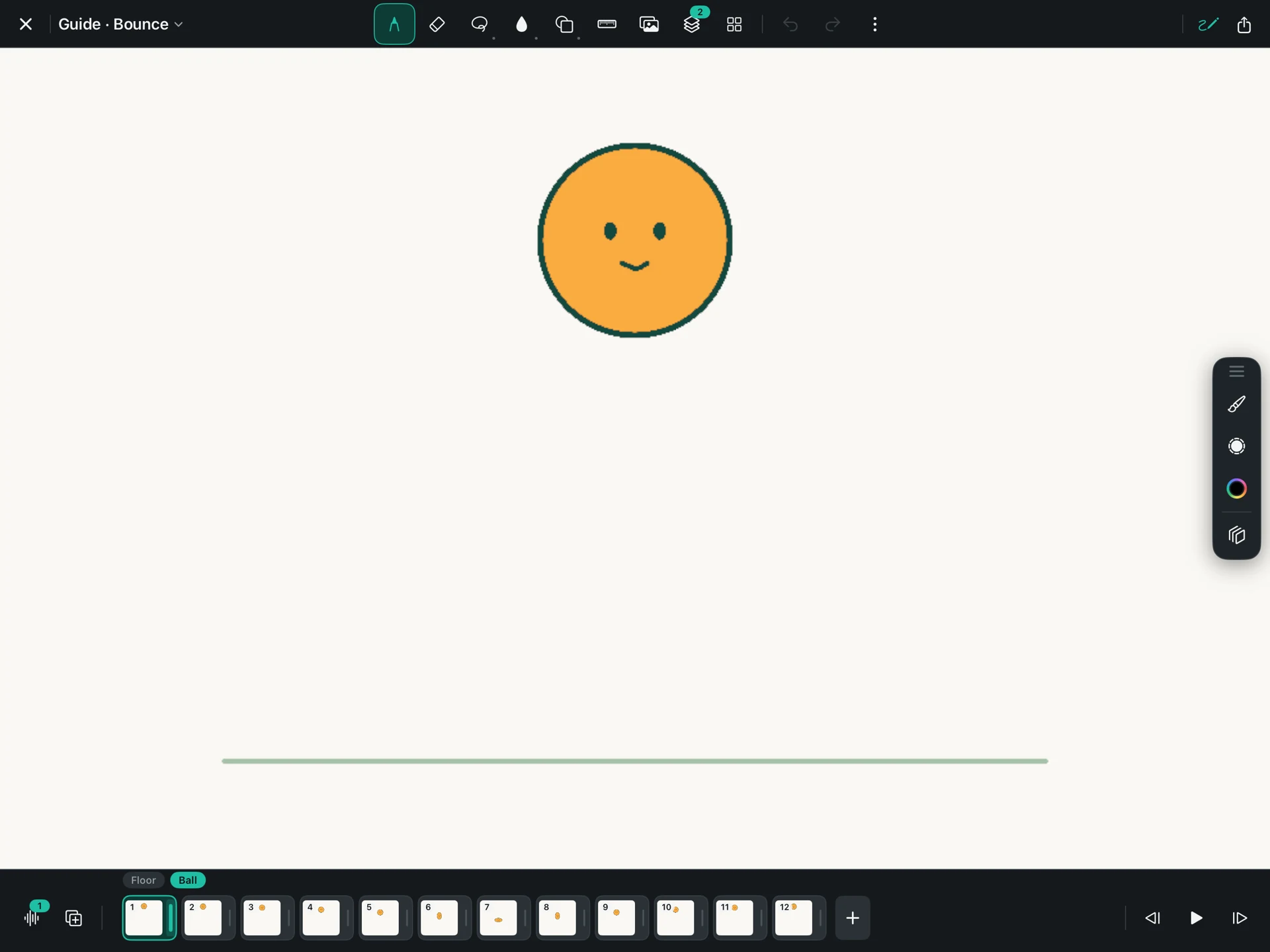
If your animation includes sound, open Audio and check that each clip starts where you expect. For the practice bounce, the tap belongs on the landing.
2. Open Export and name the file
Tap Export in the editor. Enter a name you will recognize later, such as “Ball bounce v1.” A clear name helps when you compare two versions.
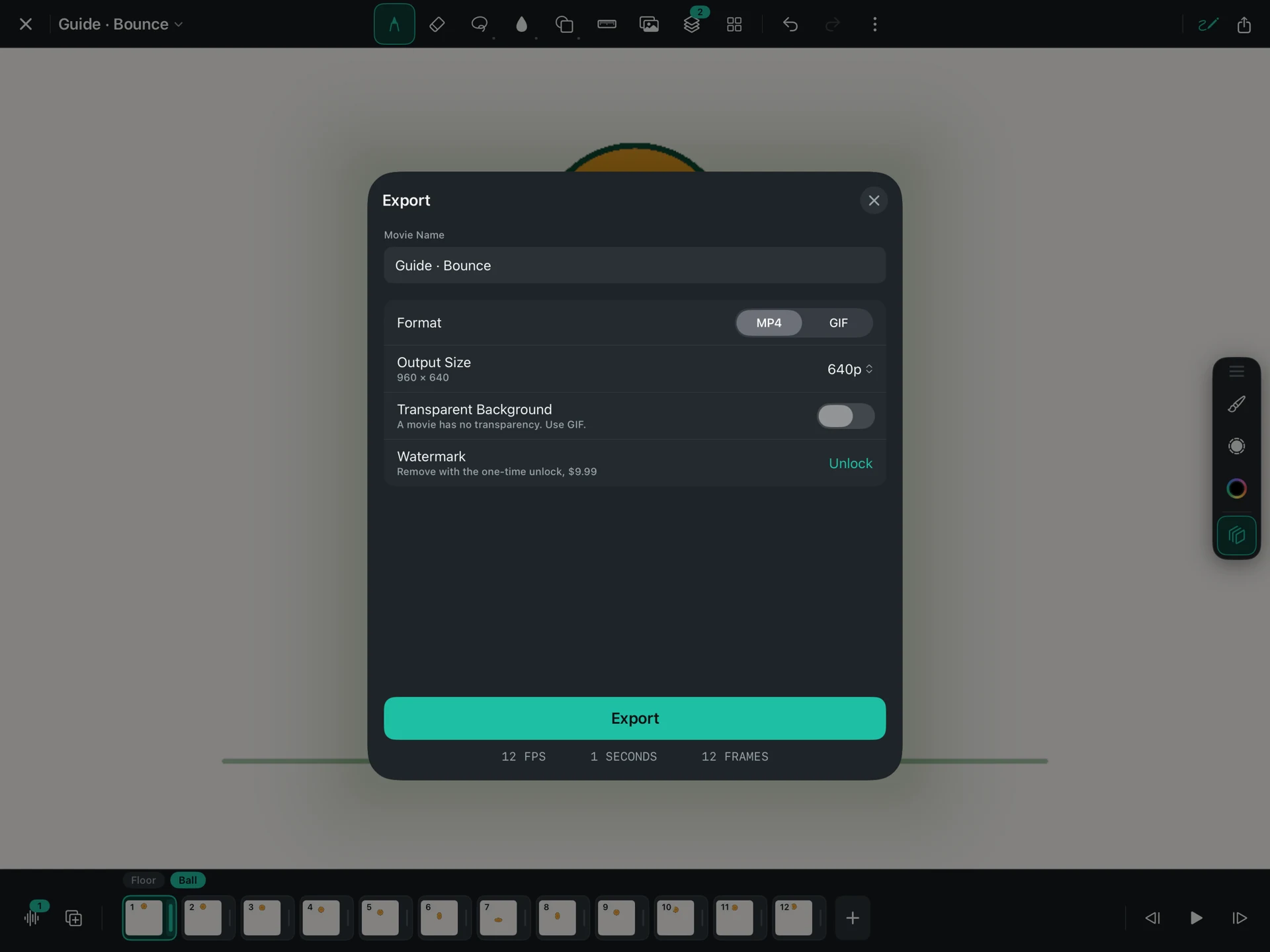
Use a new name if you want to keep an earlier version. The exported movie or GIF is separate from the editable project.
3. Choose MP4 or GIF
| You need | Choose | Why |
|---|---|---|
| Music, a voice, or sound effects | MP4 | It can keep the soundtrack with the picture. |
| A movie for a video player or social video post | MP4 | It is a standard video format. |
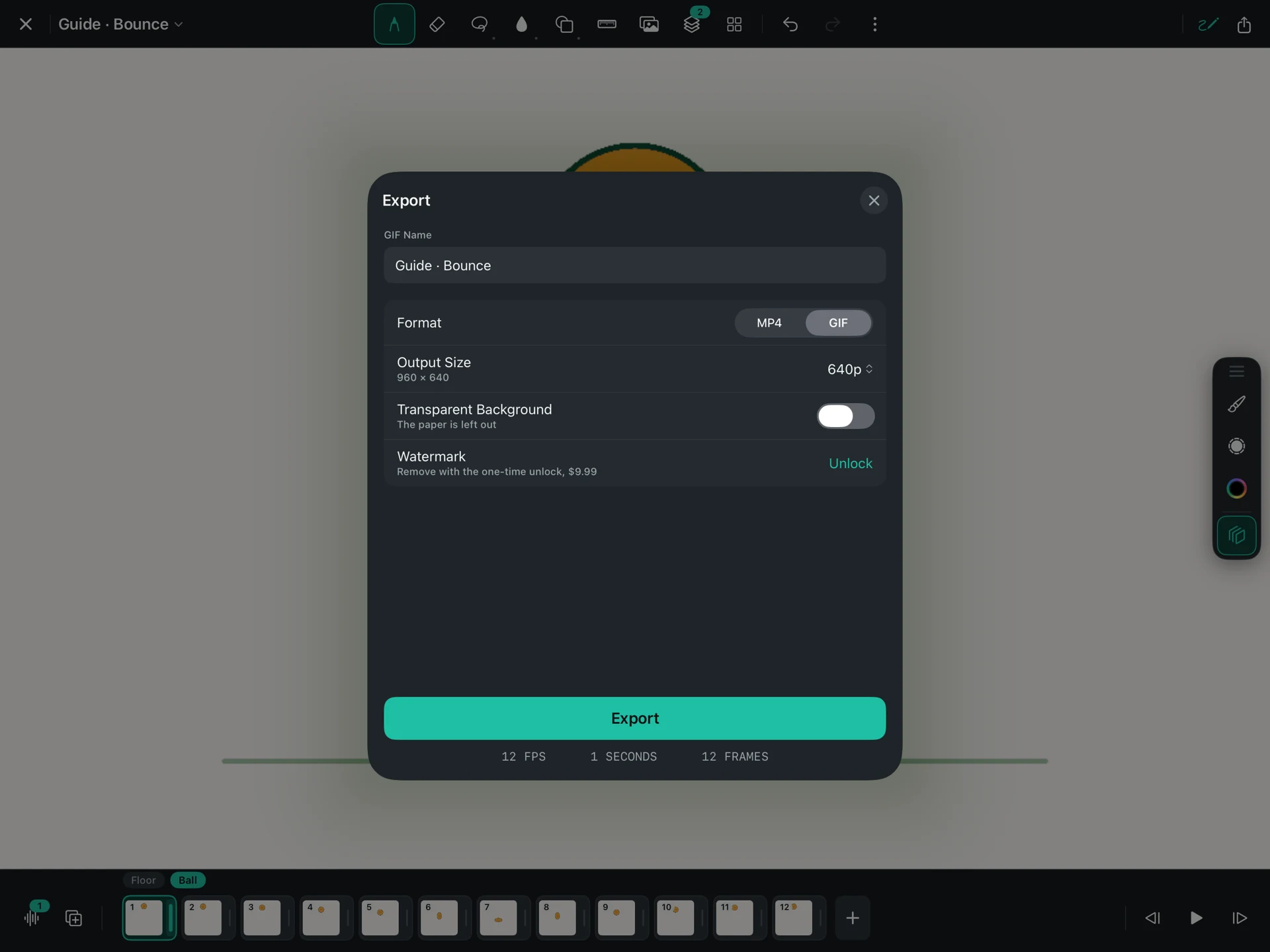
| A short, silent repeating image | GIF | It can loop in places that support animated images. |
If you are unsure, start with MP4. A long GIF can become a large file, and GIF does not carry sound. Some sharing services also convert uploaded files, so check the result where you plan to use it.
4. Choose a sensible size
Pick a size suited to where the animation will be watched. A small practice loop usually does not need the largest export. Larger dimensions can increase the file size and export time.
Making a small drawing larger cannot invent missing detail. For sharp results, plan your canvas size before doing detailed artwork.
FlikaMove’s free exports include a watermark and go up to 1080p. The optional export unlock removes the watermark and enables higher sizes, up to 4K where the canvas supports it. See the FAQ for details.
5. Export and check the saved file
Start the export and let it finish. Use the available sharing options to save or send the file. Then open that saved copy, rather than relying only on what played inside FlikaMove.
- Start: Does the first picture appear as expected?
- Movement: Is the whole action present, with the timing you intended?
- End: Is there an unwanted pause or blank picture?
- Sound: For MP4, can you hear the audio and does it match the action?
- Size: Are the important details readable at the size people will watch?
A movie player may not repeat MP4 automatically. If you want to judge the loop seam, turn on repeat in a player that offers it, or return to FlikaMove to preview the loop.
6. Keep an editable backup
Exported MP4 and GIF files do not keep your separate layers and drawings. To continue editing later, keep the complete .flikamove project package.
In Files, find the project under On My iPad → FlikaMove → Animations and copy the whole package to a backup location. Keep that copy separate from the version you are still editing. Avoid moving individual files out of the package.
Download the bounce practice project. In Files, unzip it and copy the complete .flikamove project into On My iPad → FlikaMove → Animations. Reopen FlikaMove and select the project from your library. Keep the downloaded copy as a backup.
If the result looks wrong
A silent GIF is expected; export MP4 for sound. If an MP4 seems silent, check the player’s mute setting, then listen to the project’s audio. If the movement is jerky, return to the drawing positions and holds; changing the export size will not repair timing.